Getting Started
This guide walks you through setting up the app for the first time. In about five minutes, you will have it configured for your specific test requirements and be ready to start studying.
Download the App


Tap the icon and you are studying. All of the study content is built into the app and works without an internet connection. Buying Pro or Remove Ads needs a connection, and so does speech recognition when iOS cannot run it on your device.
Open it for the first time and onboarding takes over. Seven screens, under a minute, and every one of them can be skipped. By the end the app knows your state, your language, and which of the two civics tests you are actually sitting.
Your State, Your Officials
Several civics questions have answers that depend on where you live. Who your governor is. Who your two U.S. Senators are. What your state capital is. Who represents you in the House.
Pick your state and the governor, senator and capital questions are answered for you, with names checked against official sources before every release. Entering a zip code picks your state for you. Pick a state your zip code is not in and the app clears the zip code, so you can enter the one for the new place.
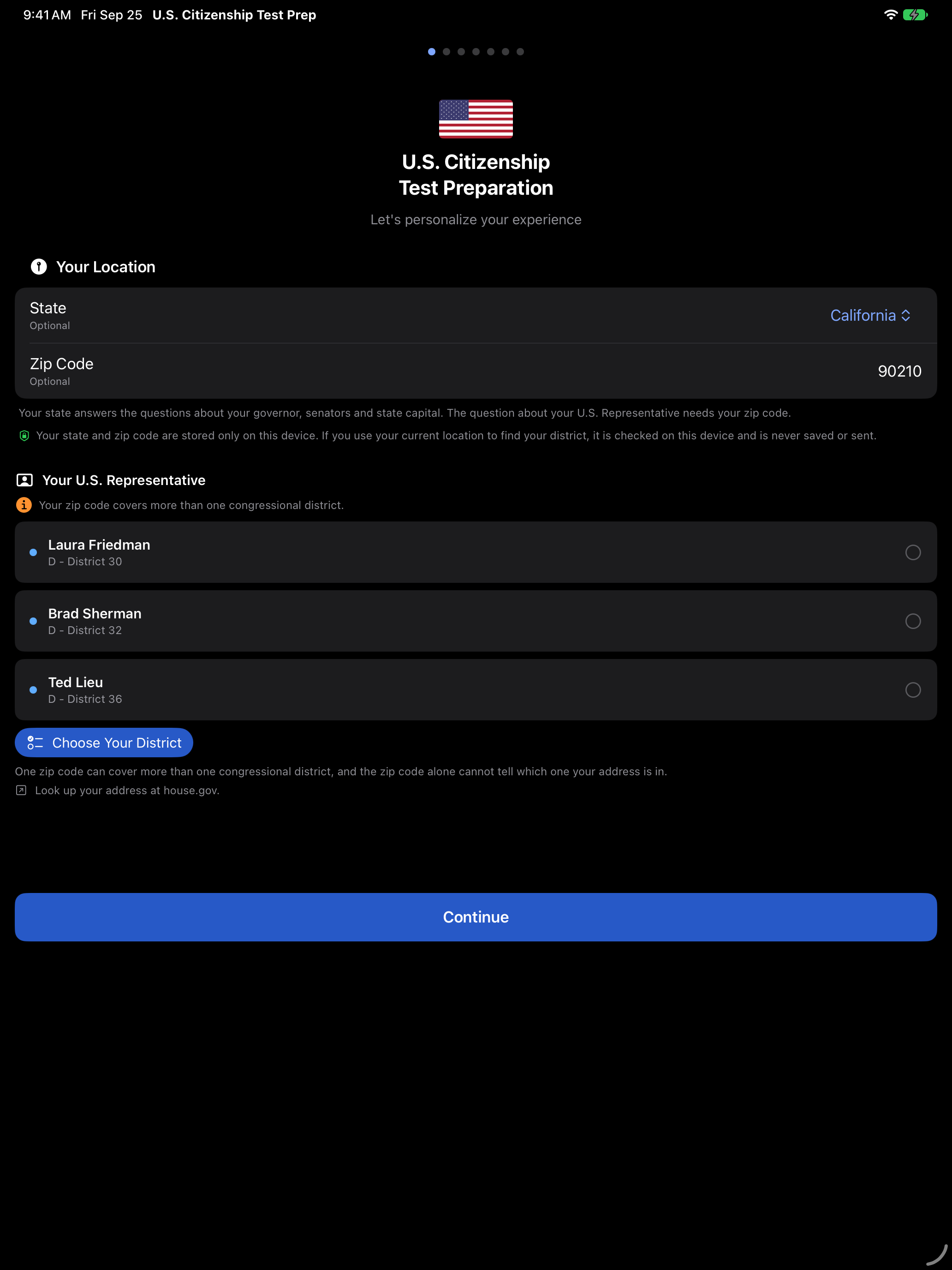
The House question needs your zip code. Type five digits and the app works out the congressional district you live in and names your representative. Most zip codes sit inside a single district, so that is the whole of it.
The rest are split between two or more districts, because mail routes were never drawn to follow district lines. When yours is one of them, the app lists the districts it could be, each with the name of the member who holds it, and you pick yours. Any of those names counts as correct until you do. A few zip codes cross a state line, so the list can hold districts from two states. Not sure which is yours? At home, Use My Current Location in the picker names the district you are in, when your zip code covers it. iOS asks for location permission the first time you tap it, the location is checked on your device and never saved or sent, and nothing changes until you tap Use This District. Or look it up at house.gov and pick that one. You can change the pick later, and changing your zip code works the district out again.
Live in Puerto Rico, Guam, the U.S. Virgin Islands, American Samoa or the Northern Mariana Islands? Your territory is in the list after the states and D.C., and a zip code there picks it for you. The app then answers the way USCIS does for your territory, with its own governor and capital and no U.S. senators. A zip code in D.C. or a territory names that place’s Delegate to the House, or for Puerto Rico its Resident Commissioner, and the app notes that the seat does not vote on the floor.
Skip all of it if you would rather. A question that needs your state or zip code tells you which one is missing, and Settings → Your Location sets both later.




Fill both in and the same screen answers back. Below is zip code 90210, which California’s 30th, 32nd and 36th districts all cover, so the app names the three members and waits for you to say which one is yours.


Study in Your Language
The app interface and civics material are available in Spanish, Portuguese, French, Chinese (Simplified and Traditional), Korean, Vietnamese, Arabic, Hindi, Turkish, Russian and Tagalog.
Pick yours and the interface follows, along with the civics study material, Multiple Choice options included. Translations are community-contributed and marked experimental in the app, so check anything that looks wrong against the English. Choose Show in English only during setup, or turn on Study in English Only later, to keep questions in English while the rest of the app stays in your language. The globe button on study and test screens switches between the two at any time.
Settings → Appearance & Language changes your language whenever you like, and Report Translation Issue in the same section emails a correction to support.
The reading and writing tests stay in English, because English ability is exactly what USCIS is testing there. Everything else follows your choice.


Pick Your Test Version
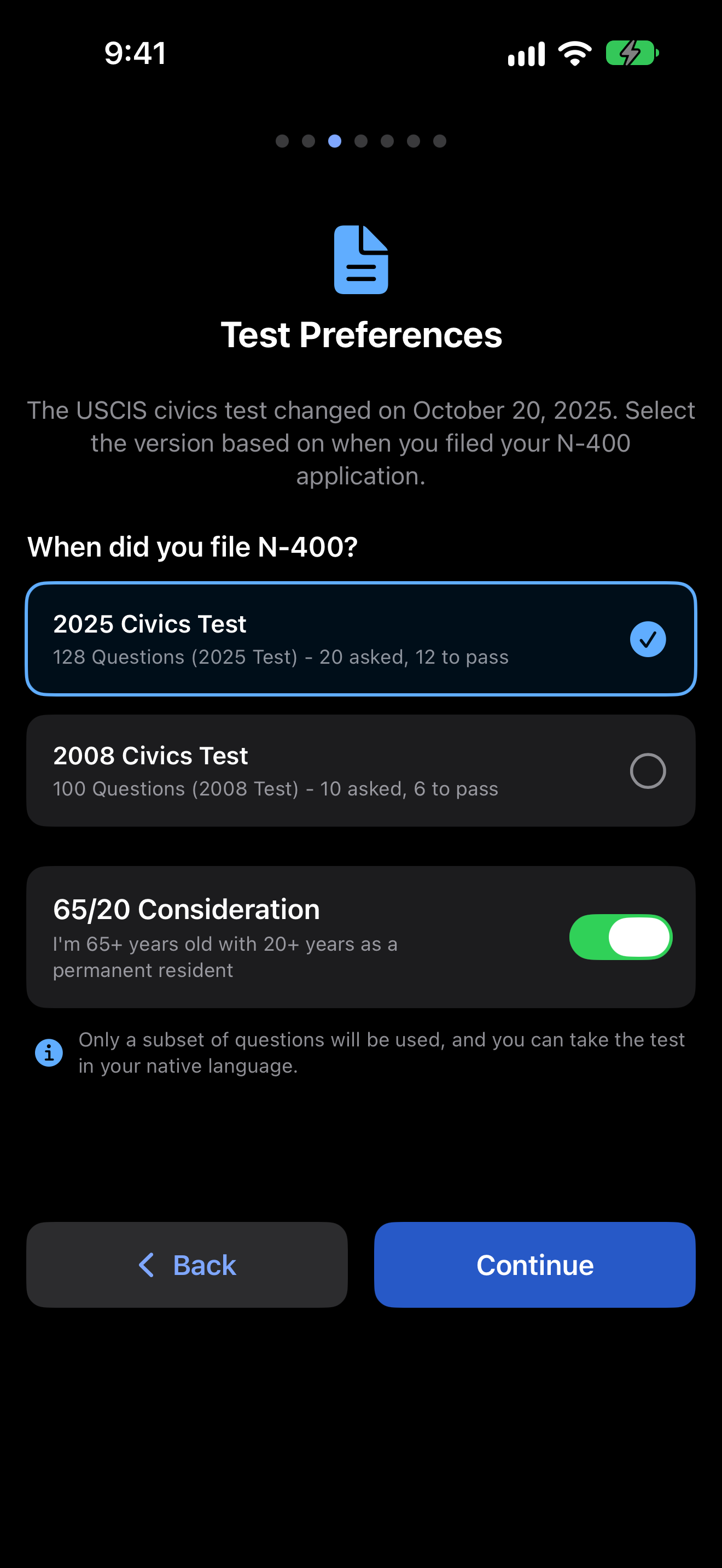
USCIS is running two civics tests at the moment. The filing date on your Form N-400 decides which is yours.
2025 Test (128 Questions)
- For applicants who filed Form N-400 on or after October 20, 2025
- 128 civics questions with updated categories
- USCIS asks up to 20 questions at the interview, and 12 correct answers pass
2008 Test (100 Questions)
- For applicants who filed Form N-400 before October 20, 2025
- 100 civics questions covering American government and history
- USCIS asks up to 10 questions at the interview, and 6 correct answers pass
Choose once here and every question, flashcard and practice test in the app matches it. The home screen widget is the one exception, since its questions come from the 2008 test. Not sure which is yours? Check the date on your N-400 receipt notice (Form I-797C). You can switch versions any time in Settings.


65/20 Consideration
If you qualify for this, your civics study list drops to 20 questions.
Applicants who are 65 or older and have been a permanent resident for 20 years or more on the date they file Form N-400 get a shorter civics test.
- You study only a designated set of 20 questions, marked with an asterisk (*) in the app and in the official USCIS materials
- You are asked 10 of them, and 6 correct answers pass
- You can take the civics test in your own language, with an interpreter
- You are exempt from the English reading and writing tests, so you can skip that practice in the app
The toggle sits on the same screen as the two test versions. Turn it on and the app immediately narrows every question list down to the designated 20. It is also in Settings → Test Settings if you would rather decide later.



Hear Every Question
Every question and answer can be read aloud, which means you can study with your eyes shut and your phone in your pocket.
Questions play aloud even when your iPhone is set to silent. Pick one steady voice, or let the app cycle through up to four of them. The cycling option is closer to real life, where you have no idea what the officer will sound like. Drag the slider down while the vocabulary is still new, then push it back up as you get comfortable, and tap Test Voice to hear the difference.
Apple’s Enhanced and Premium voices sound noticeably more natural than the default. They are free, and the app uses them automatically once you install them from Settings → Accessibility → Spoken Content → Voices on your device.


Practice Out Loud
The real interview is spoken, so the app lets you rehearse it that way. Interview Mode reads a question to you, listens to your answer, and tells you whether it would have passed.
Tap Enable here to allow speech recognition. iOS asks for the microphone the first time you record, or when you try the demo on this screen. Speech recognition runs on your device when iOS supports it for your device and language. Otherwise iOS sends the audio to Apple to turn it into text. The app does not store or upload recordings.
Not comfortable with that? Self-Grade runs the same drills and asks you to mark each answer correct or incorrect yourself. It needs no permissions at all, and you can switch between the two whenever you like. Skip this step and the Interview tab offers an Enable button that asks for both when you first want it.


Study Hands-Free
Autoplay turns the whole civics deck into audio flashcards. Questions and answers are read aloud, and cards flip and advance on their own, so you can study during a commute or a walk without touching the screen.
Start it with the play button in Study mode. Settings → Audio controls how long the app pauses before flipping a card and how many times each question gets spoken, so you can leave yourself real thinking time rather than racing the timer.


You’re All Set
The last screen reads back everything you chose so you can check that your state and test version are right before you begin.
Tap Get Started and you are in. None of it is permanent, and Settings changes any of it later.


Your Study Toolkit
With setup complete, here is what you have at your disposal.
Civics Test
Practice civics questions in tap or interview mode.
Reading Test
Practice reading English sentences.
Writing Test
Practice writing English sentences.
Study Mode
Learn with flashcards at your own pace.
Interview Mode
Simulate the real USCIS interview.
Progress
Track scores, streaks, and achievements.
Recommended first steps: Start with Study Mode to learn the civics questions, then move to the Civics Test in Tap Mode to test yourself, and finally try Interview Mode for realistic spoken practice.
Official USCIS Resources
These official resources from U.S. Citizenship and Immigration Services complement your study:
- USCIS Study Materials, the official study page with practice materials and vocabulary lists
- 2025 Civics Test, the official page for the 2025 version, which applies if you filed Form N-400 on or after October 20, 2025
- USCIS 2008 Civics Practice Test, a free online practice test for the 2008 version only
- Test Updates, the latest information on test changes and current officials
Every question is built into the app. These links are useful for verifying current officials and following test updates.