Interview Mode
Overview
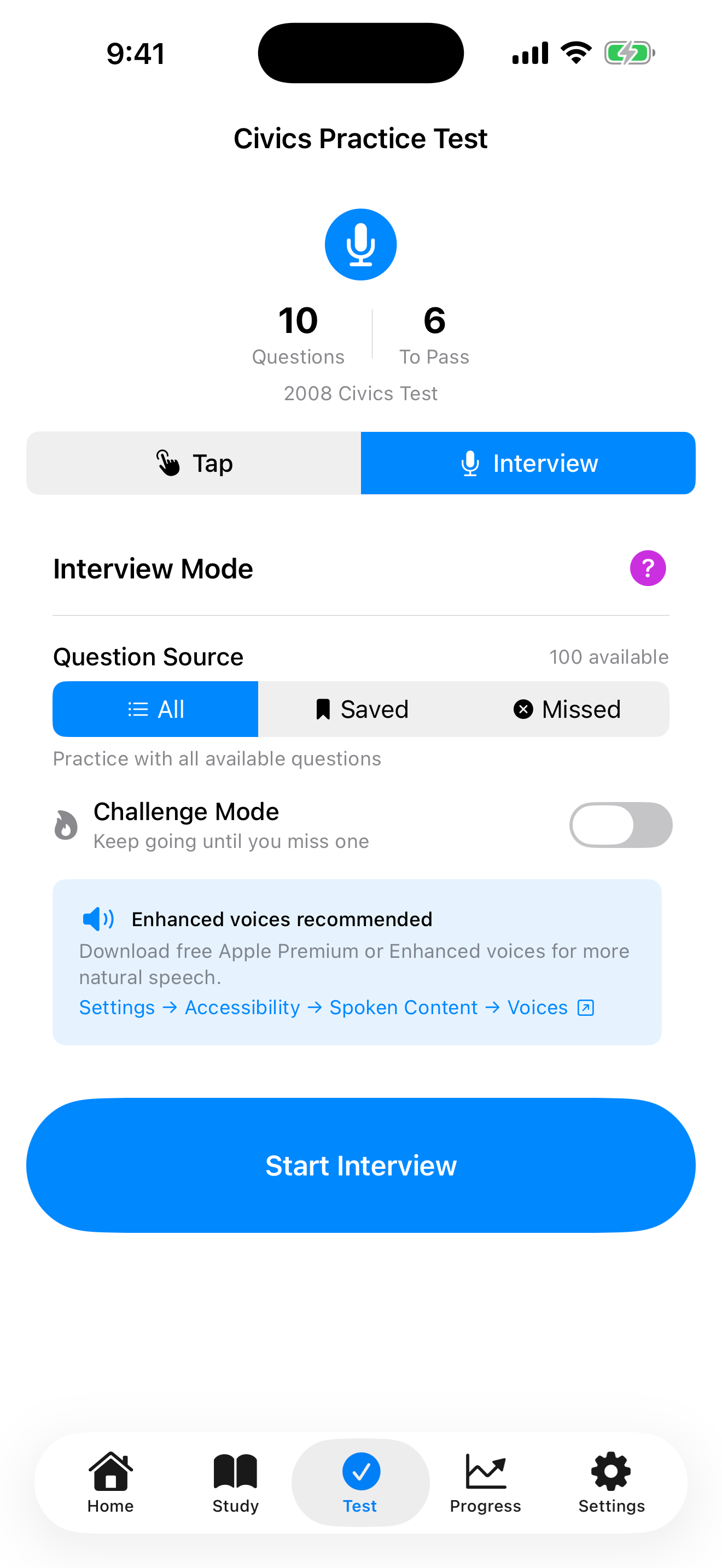
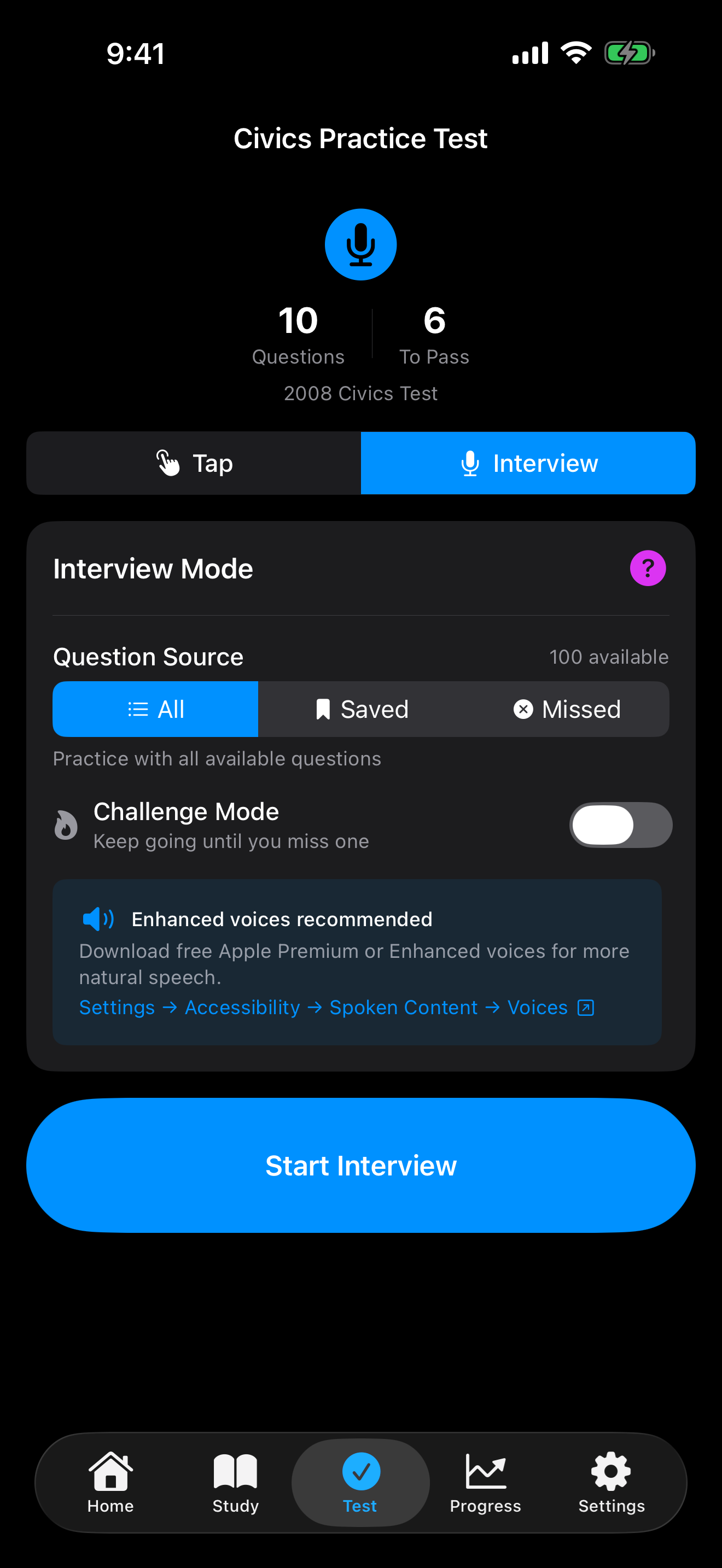
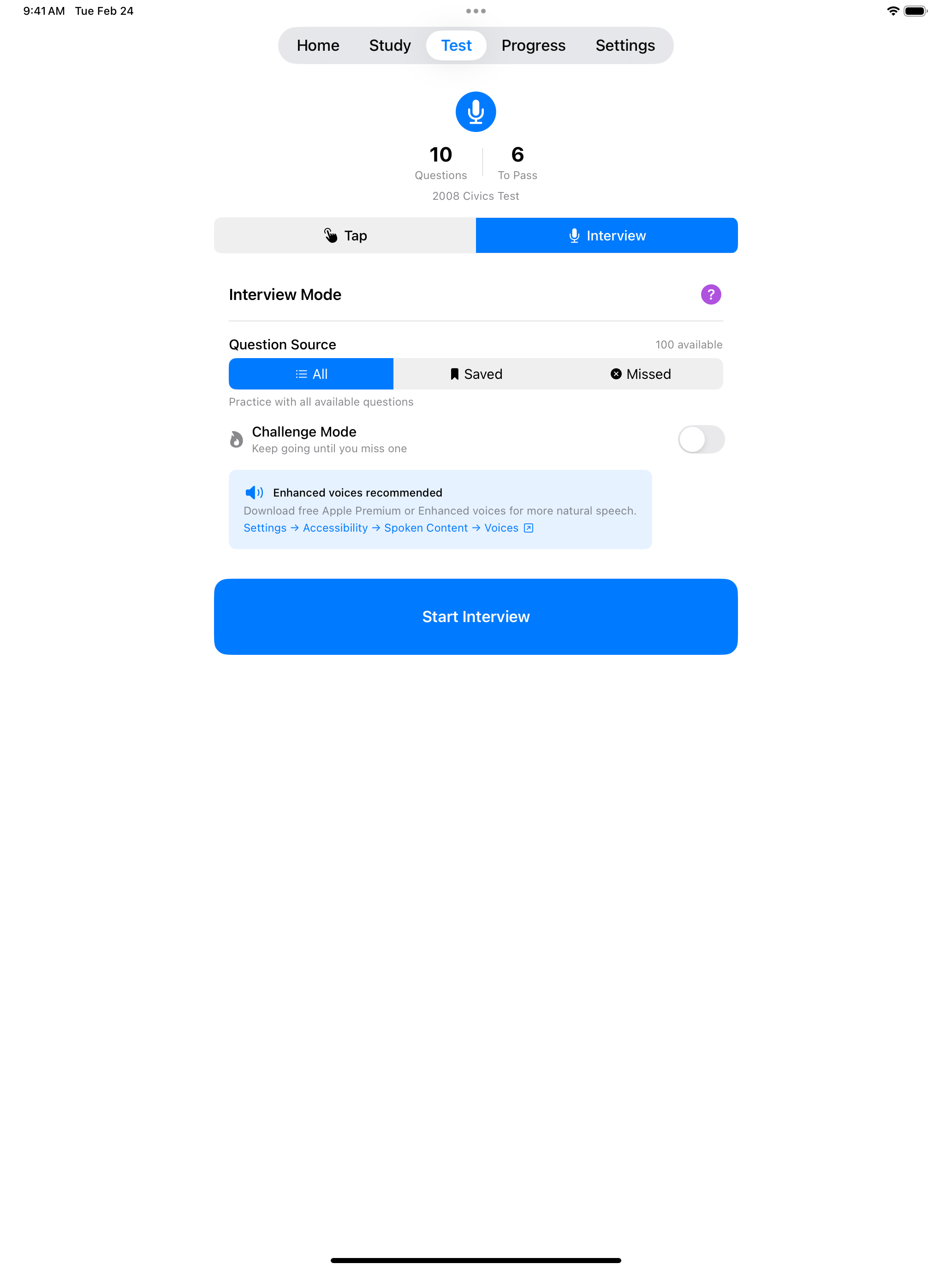
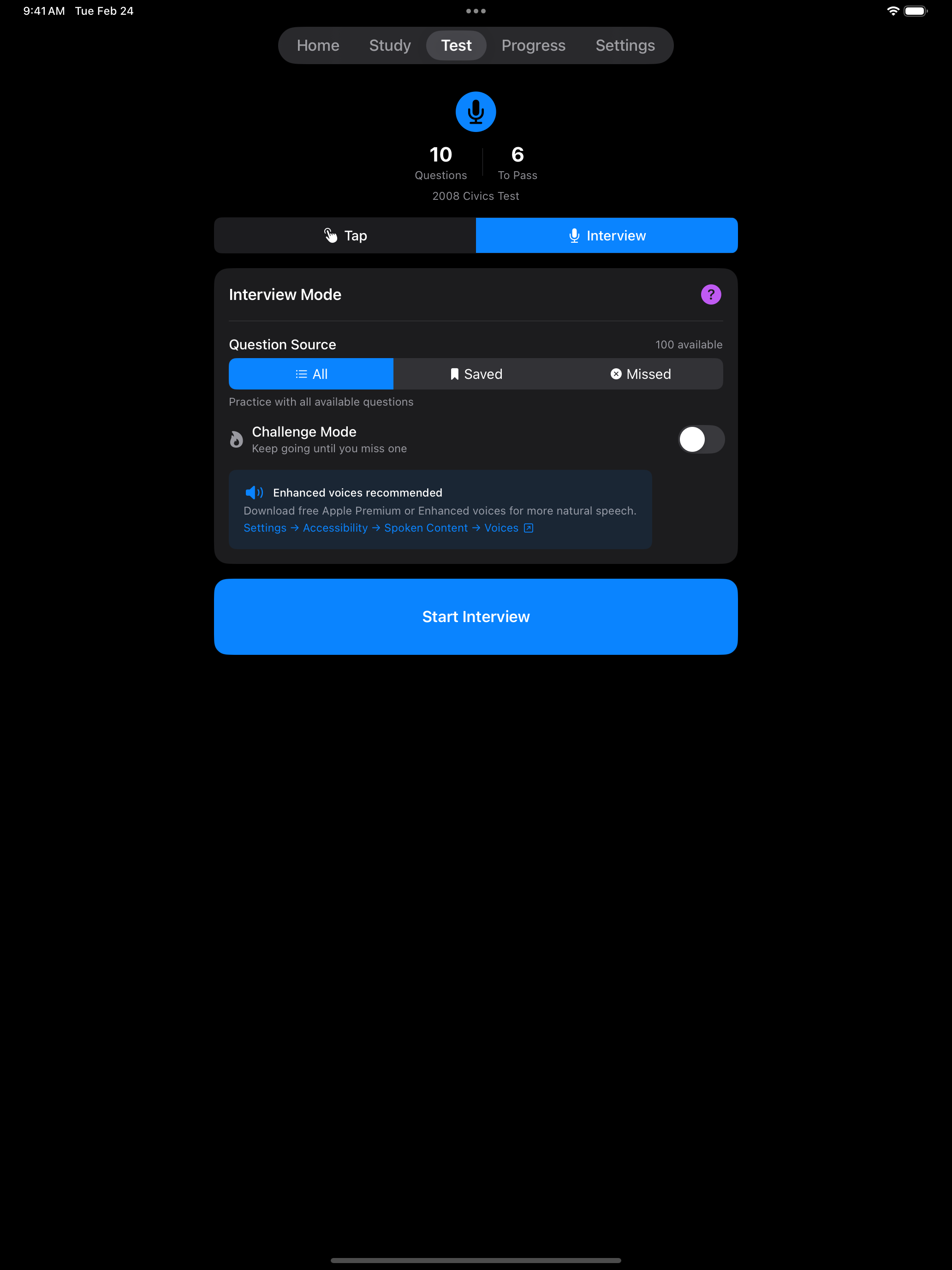
Interview Mode provides the most realistic preparation for your naturalization test. It simulates the actual USCIS interview experience where an officer reads questions aloud and you respond verbally.
How It Works
Here is what happens during each question in Interview Mode:
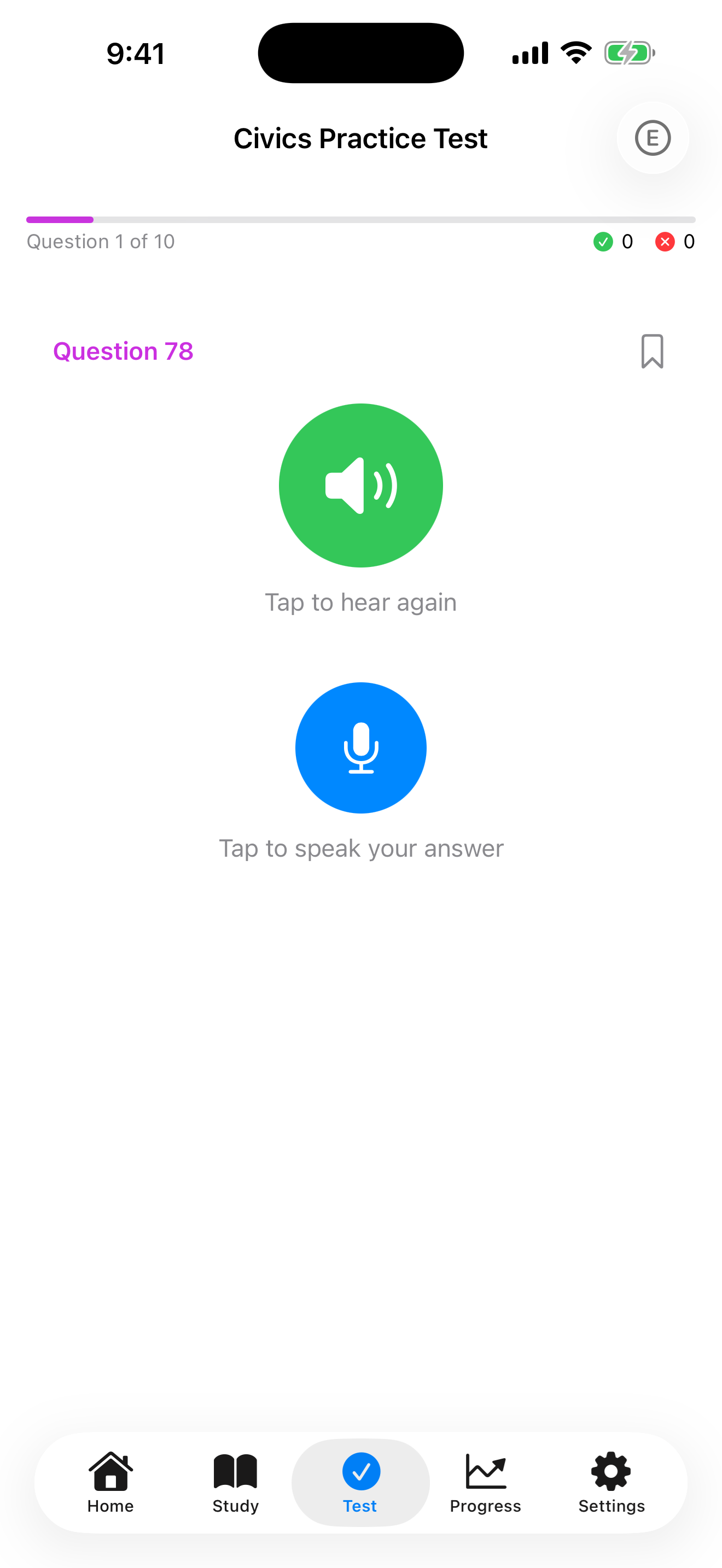
- The app picks a civics question at random.
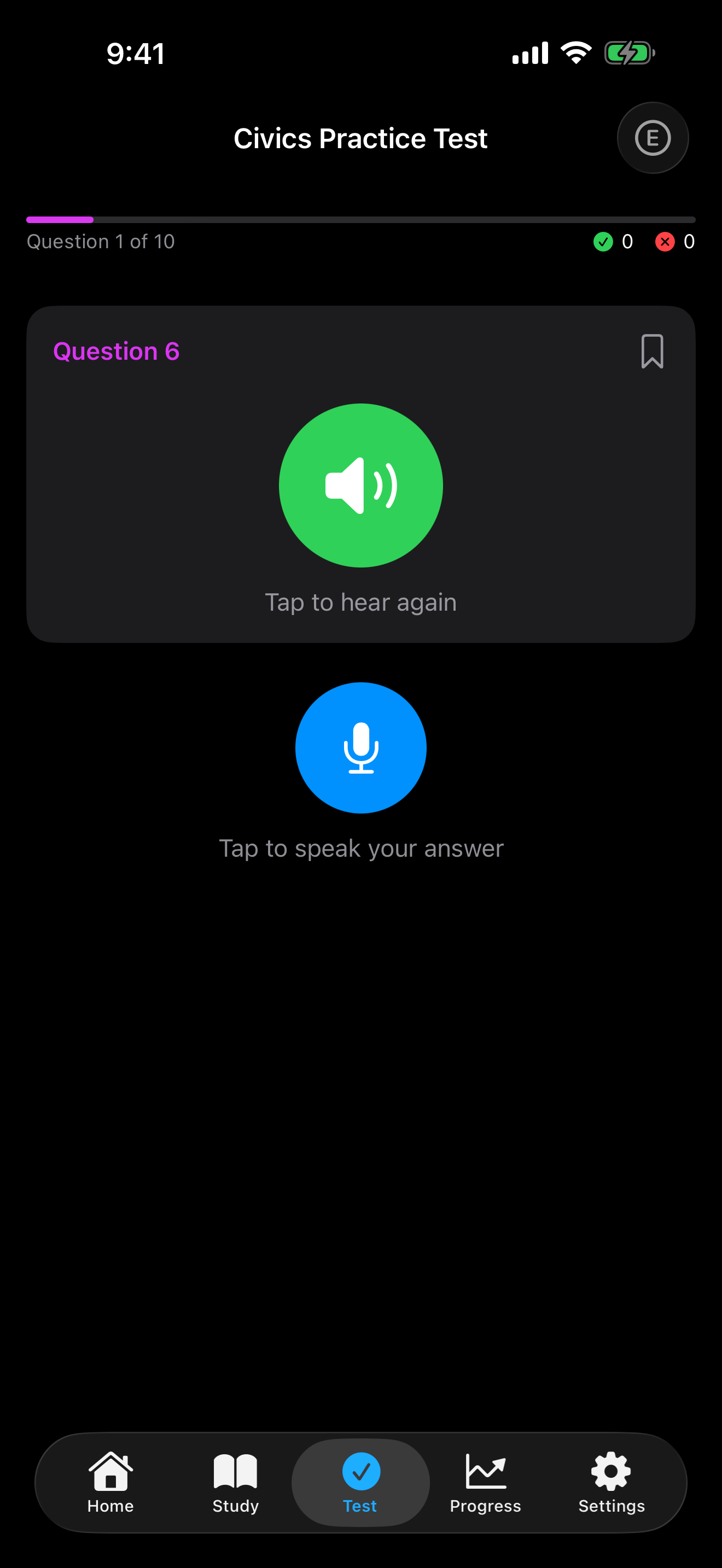
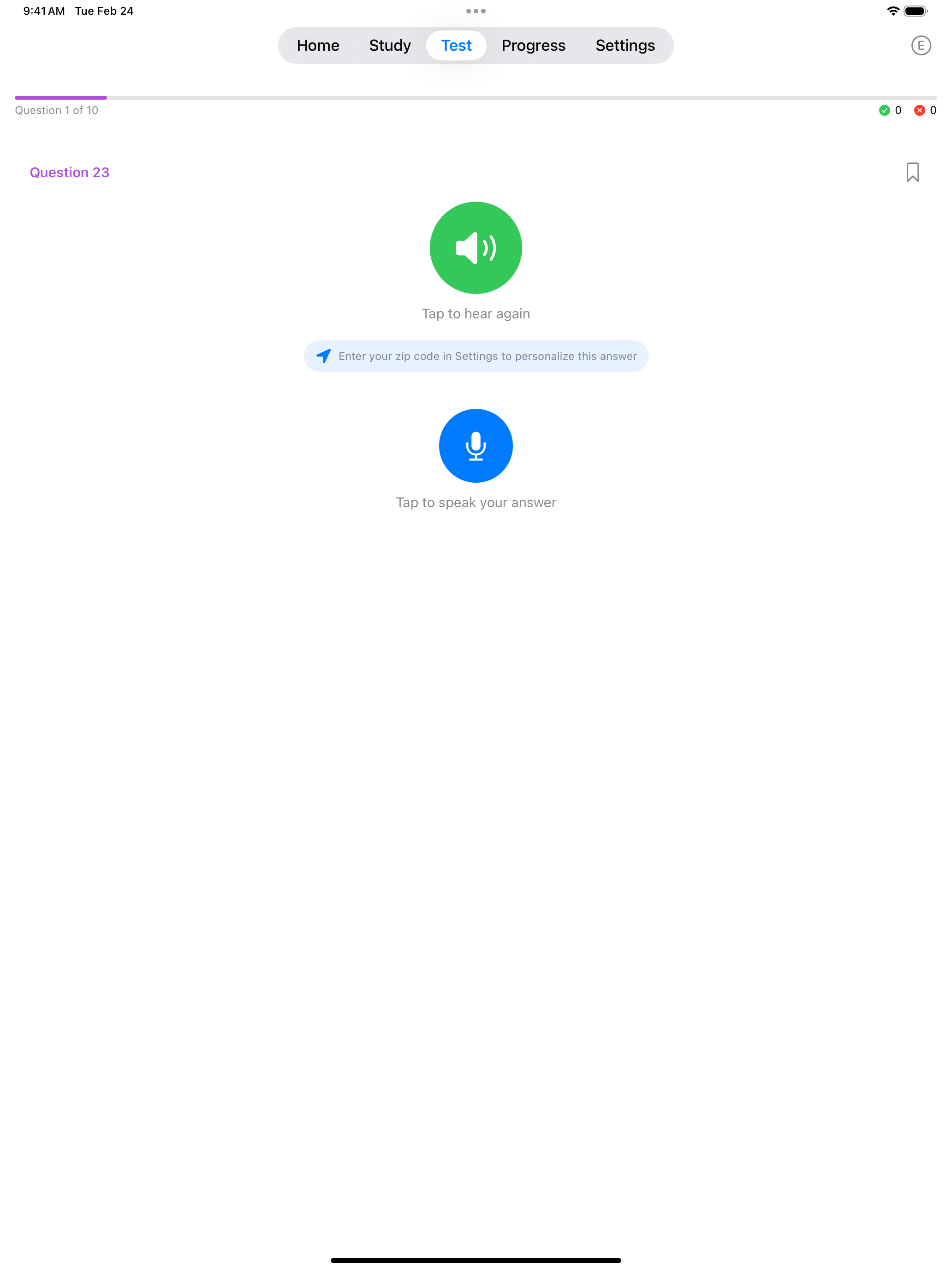
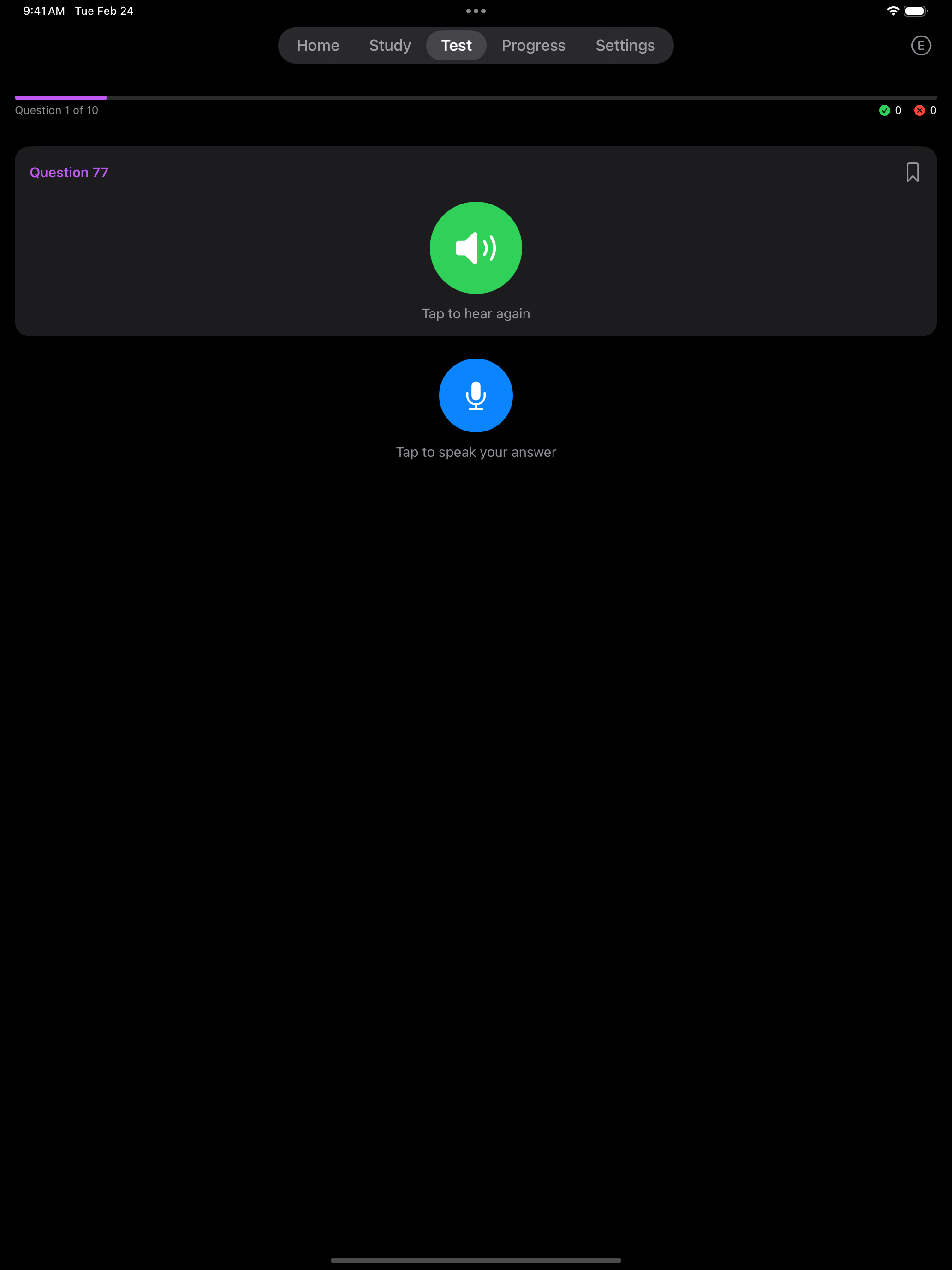
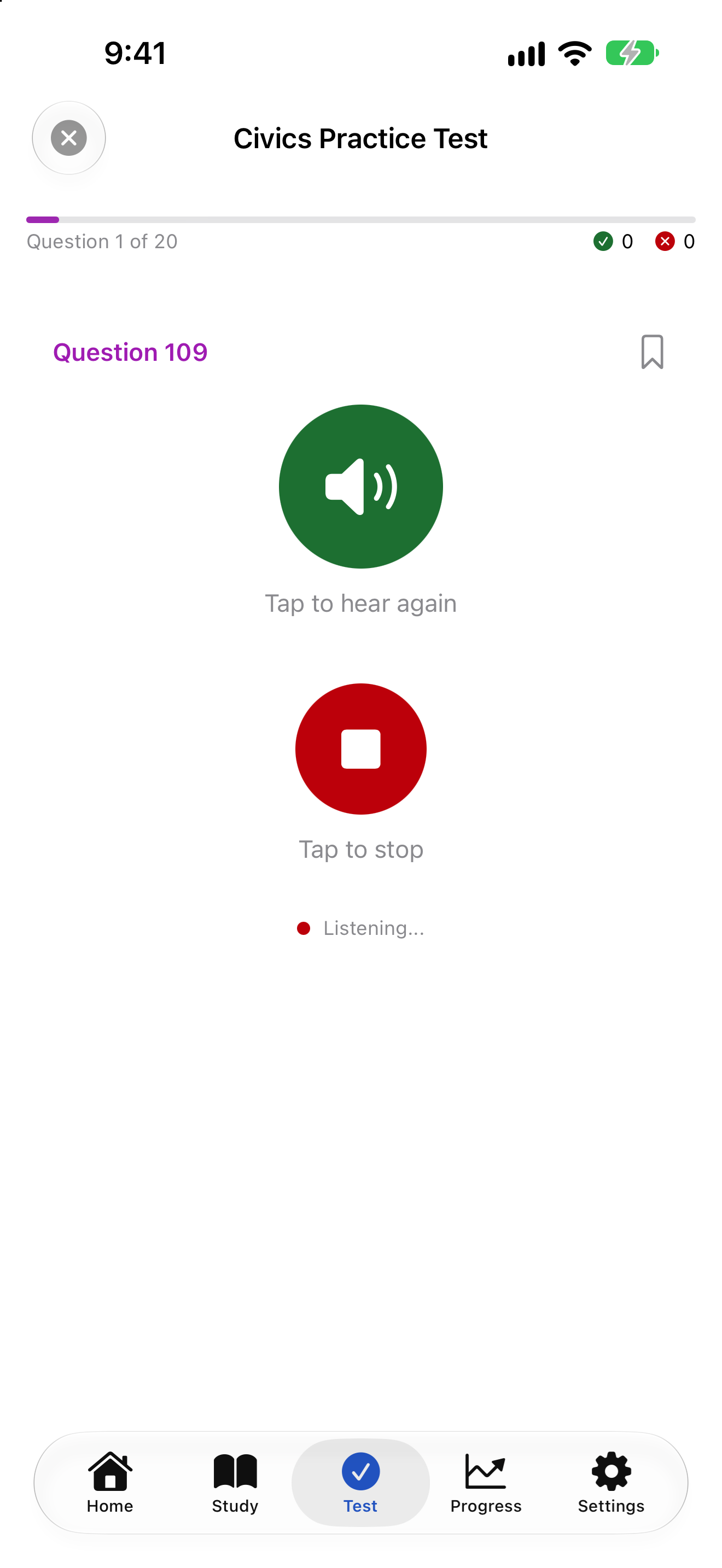
- Tap the speaker to hear the question read aloud using text-to-speech (TTS). The question text is not shown.
- Tap the microphone and say your answer. Listening stops by itself after a short pause, or after 10 seconds if it hears nothing.
- Apple’s speech recognition turns your answer into text. Check what the app heard, then tap Submit or Try Again.
- Your answer is graded against every form of the answer USCIS accepts. See How Interview Answers Are Graded.
- You see whether your answer was accepted, along with the expected answer. If the app marked a right answer wrong, tap Count as Correct.
- Each answer allows three attempts. After two tries, or as soon as a recording hears nothing, you can type your answer instead. With VoiceOver on, or while the microphone or speech recognition is turned off, typing is offered from the start.
Interview Mode needs the microphone and speech recognition. Until both are allowed, the Interview tab shows an Enable button and Start Interview stays off. See Before You Start. To stop partway, tap the close button and choose Save & Exit, and the interview picks up in Interview Mode when you resume it. See Leaving a Test.


Speech recognition runs on your device wherever iOS supports it. Where it cannot, iOS sends your audio to Apple for processing. The app does not store or upload recordings. See Accessibility for details.
Text-to-Speech
The app uses Apple’s built-in speech synthesizer to read questions aloud:
- Natural-sounding voice delivery
- Voice and speech rate are set in Settings → Audio
- Questions are read at a clear, moderate pace by default
- You can replay the question if needed
- Questions play aloud even when your iPhone is set to silent
Speech Recognition
Your spoken answers are processed by Apple’s speech recognition.
- Where iOS can run it on your device, it works without a connection
- Otherwise iOS sends your audio to Apple for processing, which needs a connection
- iOS asks for access once, when you tap Enable on the Interview tab, before the interview starts. See Before You Start
- If the microphone or the recognizer fails, the app says why under the microphone rather than grading an empty answer
- Grading allows for the many ways people say a right answer. See How Interview Answers Are Graded
Speech recognition works best in a quiet environment. Background noise can interfere with accuracy.


One thing that surprises many test takers is that most civics questions have more than one correct answer.
Multiple Acceptable Answers
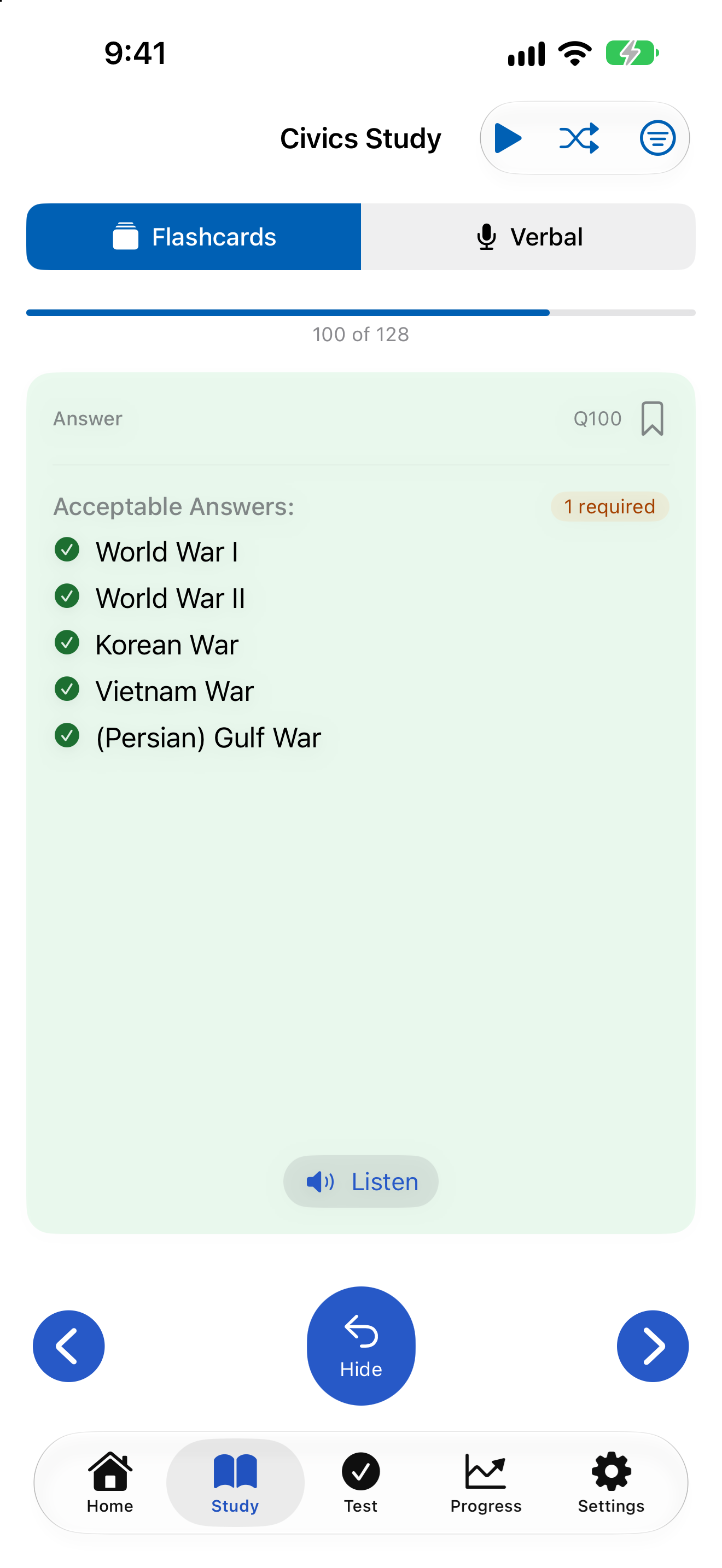
Many civics questions have more than one correct answer. For example, “What is one right or freedom from the First Amendment?” accepts: speech, religion, assembly, press, or petition. The app accepts ANY valid answer from the official USCIS answer list.
For any officeholder, including the President, the Chief Justice, your governor, your senators and your representative, a surname alone is marked correct. A surname of two words, such as Lujan Grisham, needs both words.
When a question asks for one thing, any single answer from the official list counts, so give the one you are most sure of. Some questions ask for two or three, such as “What are two Cabinet-level positions?” Those need that many correct answers. Interview Mode shows Answer 1 of 2 and asks for another answer until you have given enough. Each answer gets its own three tries, and repeating one you already gave does not use one up.


Tips for Best Results
- Practice in a quiet room
- Hold your device at a comfortable distance (not too close to your mouth)
- Speak clearly at a natural, unhurried pace
- Wait for the microphone indicator before speaking
- If the app doesn’t recognize your answer, try speaking more slowly
- Start with Tap Mode to learn the answers, then switch to Interview Mode